
Introduction
TaxInvoice.LK is a powerful cloud-based ERP system designed primarily for service sector SMEs in Sri Lanka, helping you run your business efficiently and stay fully compliant with local tax regulations.

Core Features:
- Invoicing: Create Tax/Non-Tax invoices, QR-based delivery notes, and customizable formats.
- Finance: Customer payments, automatic allocation, supplier tracking, and payment vouchers.
- Cheque Printing: Print bank cheques directly from your office printer.
- Inventory: GRN-based purchasing and stock transfers across branches.
- Administration: Role-based permissions, multi-branch control, and audit visibility.
Registration
Follow these steps to create your 30-day free account. After the trial, you can continue with a monthly subscription.
- Visit app.taxinvoice.lk/register.
- Enter your email address. If VAT registered, enter your TIN No for validation (optional for registration).
- Click "Verify & Continue".
- Check your email (and spam folder) for the verification link.
- Click the link to complete registration by entering your Company Name, Address, Telephone, and a unique Branch Code (e.g., CCTC for Colombo Consumer Trading Company).
- Set up your Username, Password, and Name.

Login & Password Management
Access the system using your username and password. We recommend using your email as your username for easier recovery.

Resetting Forgotten Password
- Click "Forgot your password?" on the login page.
- Enter your username and click "Send Reset Email".
- Open the link from your email and set a new strong password.
Dashboard Overview
The Dashboard provides a real-time snapshot of your business operations:
- Financial Charts: Visual representation of invoices for the current month and financial year.
- Quick Stats: Real-time counts of invoices and payment statuses at the top.
- Recent Activity: The right panel displays the last 20 invoices created.
- Shortcuts: Fast access to the most frequently used system functions.
Creating an Invoice
Prerequisite: Ensure the customer is created in the system before starting.
Step 1: Adding Items
Go to Invoices > Create Invoice. You can add items in two ways:
- Saved Products: Search by name/code to load preset descriptions and rates.
- Manual Entry: Type details directly into the description, Qty, and Rate boxes. You can check "Save as new product" to add it to your inventory automatically.

Step 2: Finalizing Details
Once items are added, click "Create Invoice" to fill in the header details:
- Branch & Invoice Type: Select the correct branch and choose between Tax Invoice (VAT compliant) or Normal Invoice.
- Customer: Select from the search list to auto-fill details.
- Compliance Data: For Tax Invoices, you must enter Dispatch Date, Place, and Payment Mode.

Viewing & Filtering Invoices

Use the filter bar to generate specific reports:
- Date Range: Filter by creation date.
- Payment Status: View "All", "Paid", or "With Due" (Debtor report).
- Export: Download filtered results as CSV (Excel) or PDF.
Editing & Printing
Editing
Find the invoice in View Invoices and click the Pencil icon. Note: If you change the Branch, Type, or Date, the invoice number will be regenerated to maintain compliance, and the old number will be retired.
Printing

Click the Printer icon to generate a professional PDF. You can print directly or download the file for emailing.
Delivery Notes & QR Tracking
Delivery notes are document-only records (no prices) used for physical transport of goods.

- From Invoices: Search an invoice and click the Vehicle icon to generate a linked note.
- QR Location: Paste a Google Maps share link when creating a note. The system will generate a QR Code on the printout for drivers to scan.
- Standalone Notes: Create notes for samples or exchanges via Invoices > Delivery Notes. This deducts stock if items are physical products.
Quotations

The quotation process mirrors invoicing but does not commit financial records or deduct stock. You can convert quotations into invoices once accepted by the customer.

Customer Management

Under Customers > Customer List, you can add new clients or edit existing ones. Only the Name is mandatory, but entering the TIN No is required for generating compliant Tax Invoices for them.
Customer Payments

When you receive funds, log them in Customer Payments before settling invoices. This allows you to track partial payments and unallocated credits.
- Methods: Cash, Cheque, Transfer, etc.
- Currencies: Support for foreign currency settlements.
Invoice Settlement

Link payments to outstanding invoices:
- Click "Settlements" on a payment record.
- Use "Auto Allocate" to apply the payment to the oldest invoices first.
- Or manually enter the amount against specific invoices.
- Click "Allocate" to finalize.
Debit Summary (Ageing Report)

Generate a comprehensive statement for any customer over a selected period. This report shows all invoices, payments, and the net balance, perfect for sending to clients as a statement of account.
Supplier Management

Manage your creditors under the Suppliers menu. Note: Other branches may appear as suppliers when stock transfers occur.
Supplier Invoices

Log incoming invoices from your vendors. You can attach a scan (PDF/JPG) of the physical invoice for your digital records.
Business Expenses

Track non-inventory costs like rent, salaries, and utilities. Categorize them to generate accurate overhead reports for your accountant.
Payment Vouchers

Vouchers serve as internal proof of payment. For suppliers, the system will show all Unpaid Invoices, allowing you to select which ones are being covered by the voucher.

Cheque Printing

Print bank cheques on your standard printer using the Envelope DL setting.
- Ensure the payment account is set as a Bank Account with a template assigned.
- Set the payment method to Cheque.
- Click "Print Cheque" (ash icon) on the voucher record.

If the alignment is off, go to Settings > Accounts > View Templates to adjust the X (Left) and Y (Top) margins in decimals.
Inventory Management
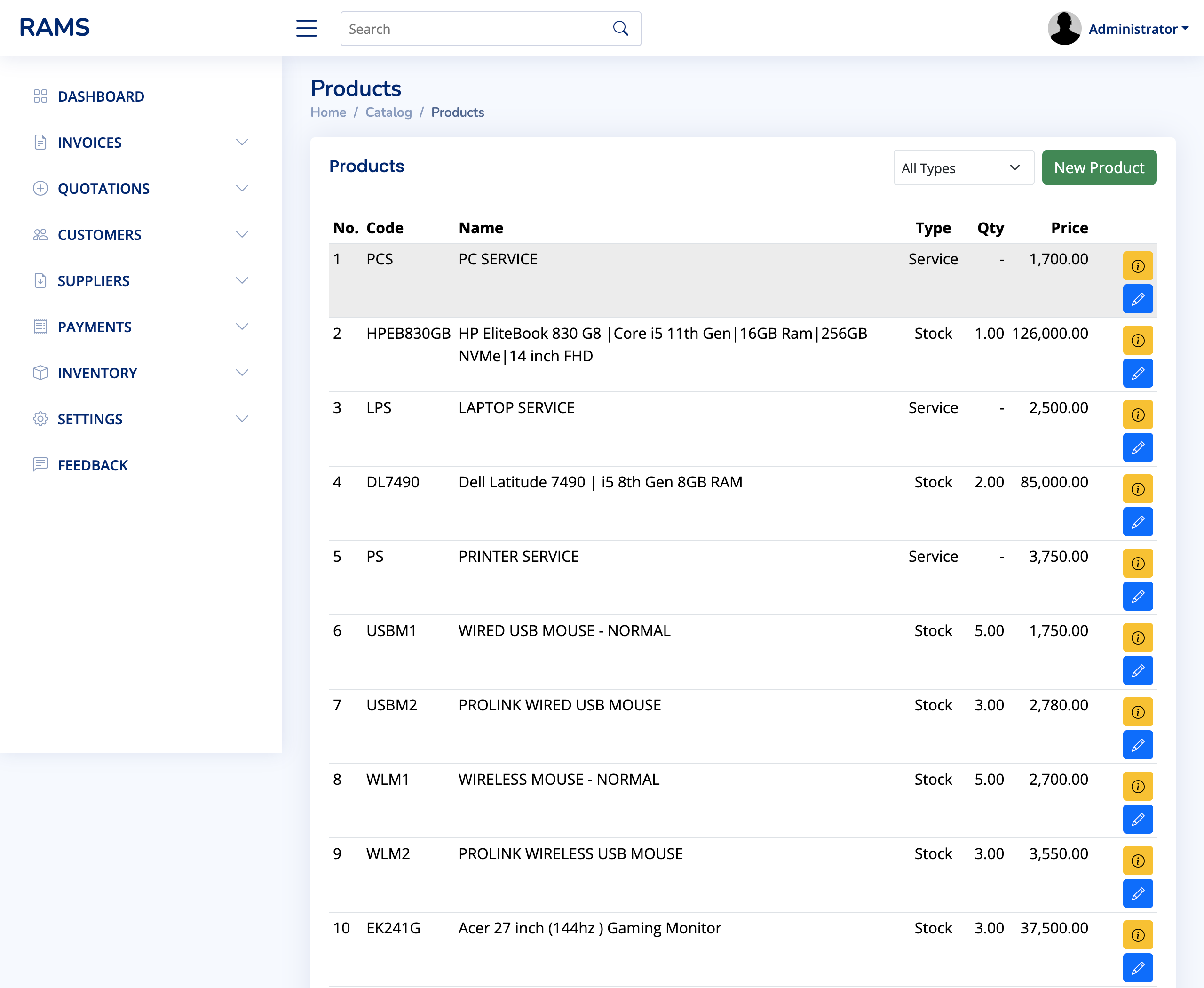
Manage physical goods and services. The system tracks Stock Items (physical count) and Services (unlimited count).
Product Catalog

Define your products with unique codes (or barcodes), default prices, and detailed descriptions. These defaults save time during the invoicing process.
GRN / Adding Stock

Physical stock is updated through a Good Receive Note (GRN). This process simultaneously updates your inventory levels and creates a liability in Supplier Invoices if selected.

Stock Transfers

Move items between branches effortlessly. A transfer note deducts stock from the source and automatically generates a GRN for the destination branch to ensure audit trails remain intact.
System Settings
Company & Branches

Configure your company header and manage multiple branch locations. Each branch can have its own sequence for invoice numbering.
User Management

Add employees and control their access levels. Privileges can be set at a granular level (e.g., a user can create invoices but not delete them).

Bank Accounts

Link your real-world bank accounts and petty cash funds to the system for accurate financial tracking and cheque printing.
Meta Data
Manage core system categories used for grouping products, expenses, and other records. These are critical for accurate reporting.
Feedback & Support
Need help or have a suggestion? Use the Feedback menu to send a direct message to our support team. We use your input to continuously improve TaxInvoice.LK.